FMIS Project Overview
FMIS tracks land acquisition files for Adani Group. A file is the land taken through one process, and its file sheet turns the client's process sheet into a screen, with a row for every milestone and sub-milestone.
Each step has a planned date from the approved plan, which stays frozen, and a revised date showing where it is expected now. Teams can see where each file stands, which office holds it, and how far it has moved from the plan. FMIS runs as a standalone application and supports sign-in from LAMS.
Project Objectives
The system was built to:
- Turn the land acquisition process sheet into one working screen for every file.
- Start each file from a standard template for its state, process, and land type.
- Measure delays against an approved plan that stays frozen, for each step and across the file.
- Show which office holds each file and for how many days, on dashboards and reports by business, state, site, and file.
- Send every change in flow through an approval.
- Keep documents with their files and flag the mandatory ones that are missing.
How a File Moves
Every file follows the same path, from process setup through progress updates to monitoring and reporting.
Create the file
A site user chooses the site, state, district, process, and land type. The template fills in the milestones, and the file name is generated from the business, site, village, and area.
Plan the dates
Planned dates are built from a start date and the estimated days of each step. Approval freezes them as the plan.
Record progress
Entering an actual date completes a step at once, and the remaining revised dates adjust automatically. A step can require a document, a delay carries a remark, and files move forward only.
Approve changes in flow
Adding, skipping, removing, or re-ordering a step, renaming a sub-milestone, changing a revised date or template, and putting a file on hold all need the Site Head's approval, or the L&E Head's for a Site Head's own request.
Split and merge
A file of any process can be split into parts at any step. Files at the same milestone and sub-milestone can be merged when they share a site, template, land type, and district, so private and government land never merge.
Monitor and report
The dashboard, review, and reports show delays, office pendency, and file movement, with a drill-down to each file.
A LARR File, Milestone by Milestone
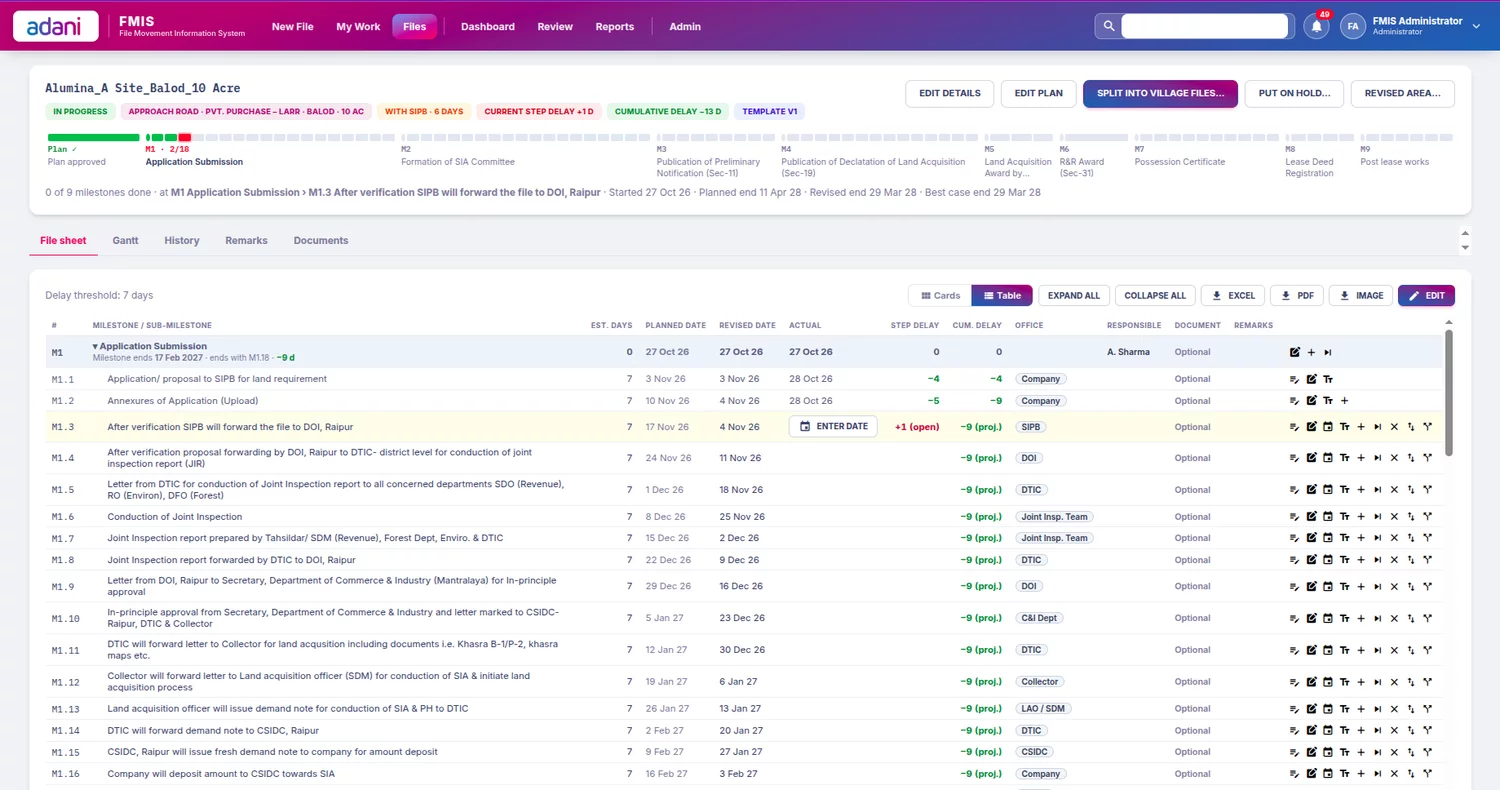
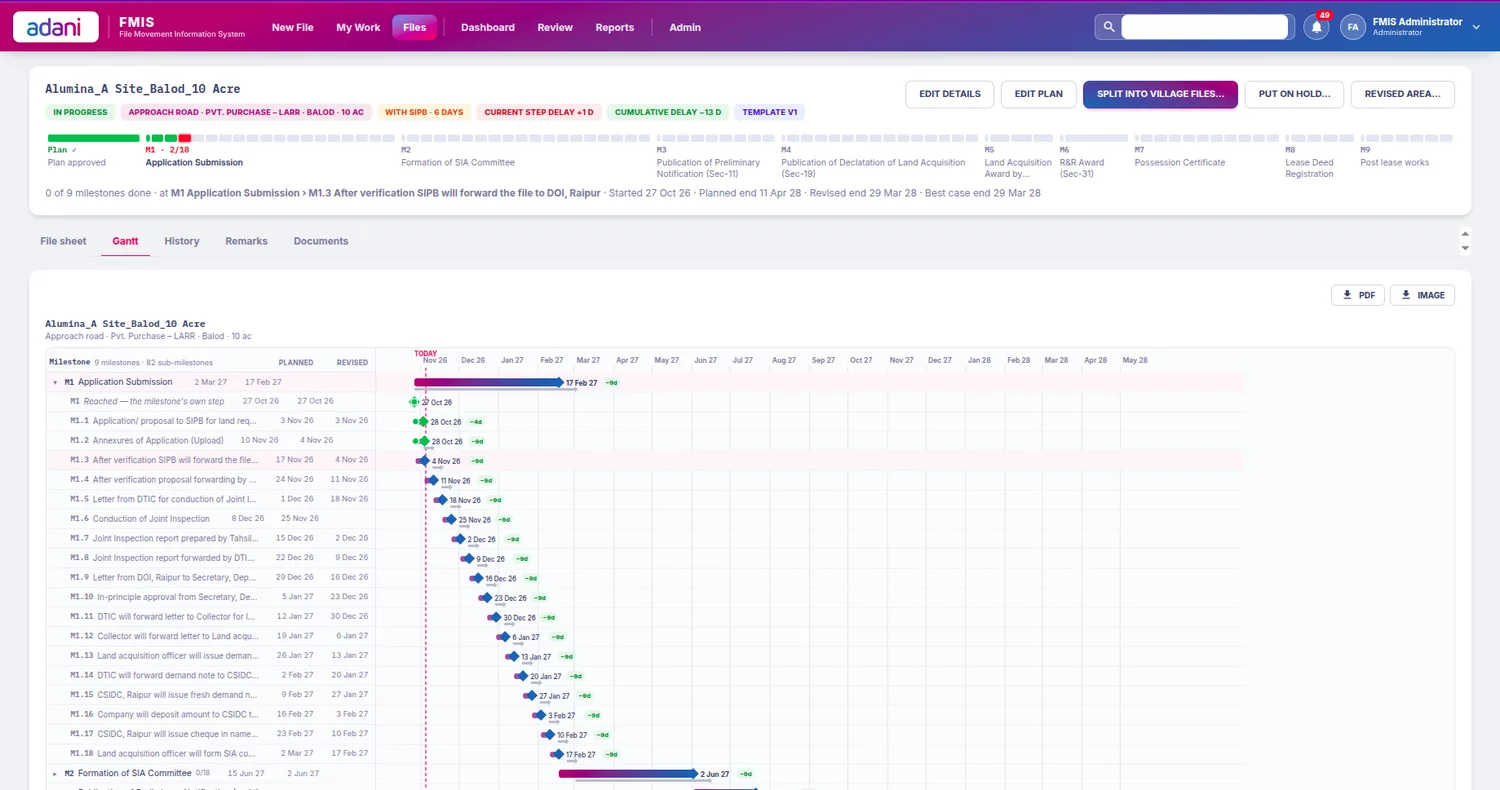
Milestone names come from the admin template, and the site can rename its sub-milestones. The private purchase file shown in these screens follows the LARR (Land Acquisition, Rehabilitation and Resettlement) process, with nine milestones and 82 sub-milestones:
- Application Submission
- Formation of SIA Committee
- Publication of Preliminary Notification (Sec-11)
- Publication of Declaration of Land Acquisition (Sec-19)
- Land Acquisition Award by Collector (Sec-23)
- R&R Award (Sec-31)
- Possession Certificate
- Lease Deed Registration
- Post lease works
Inside the Application
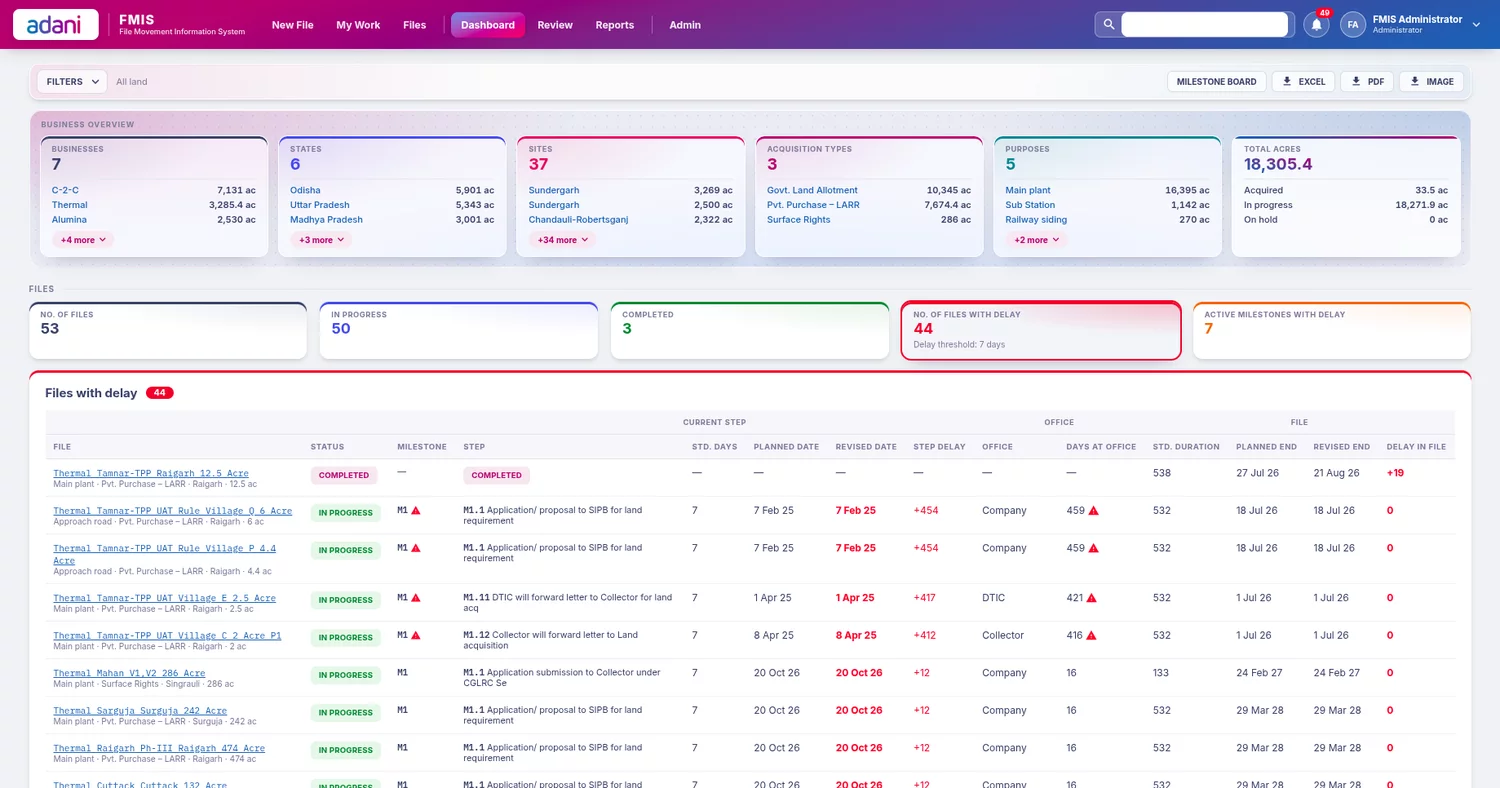
Acres by business, state, site, acquisition type, and purpose, followed by the files with delay. Each one shows its current step, office, days at the office, and planned and revised end.
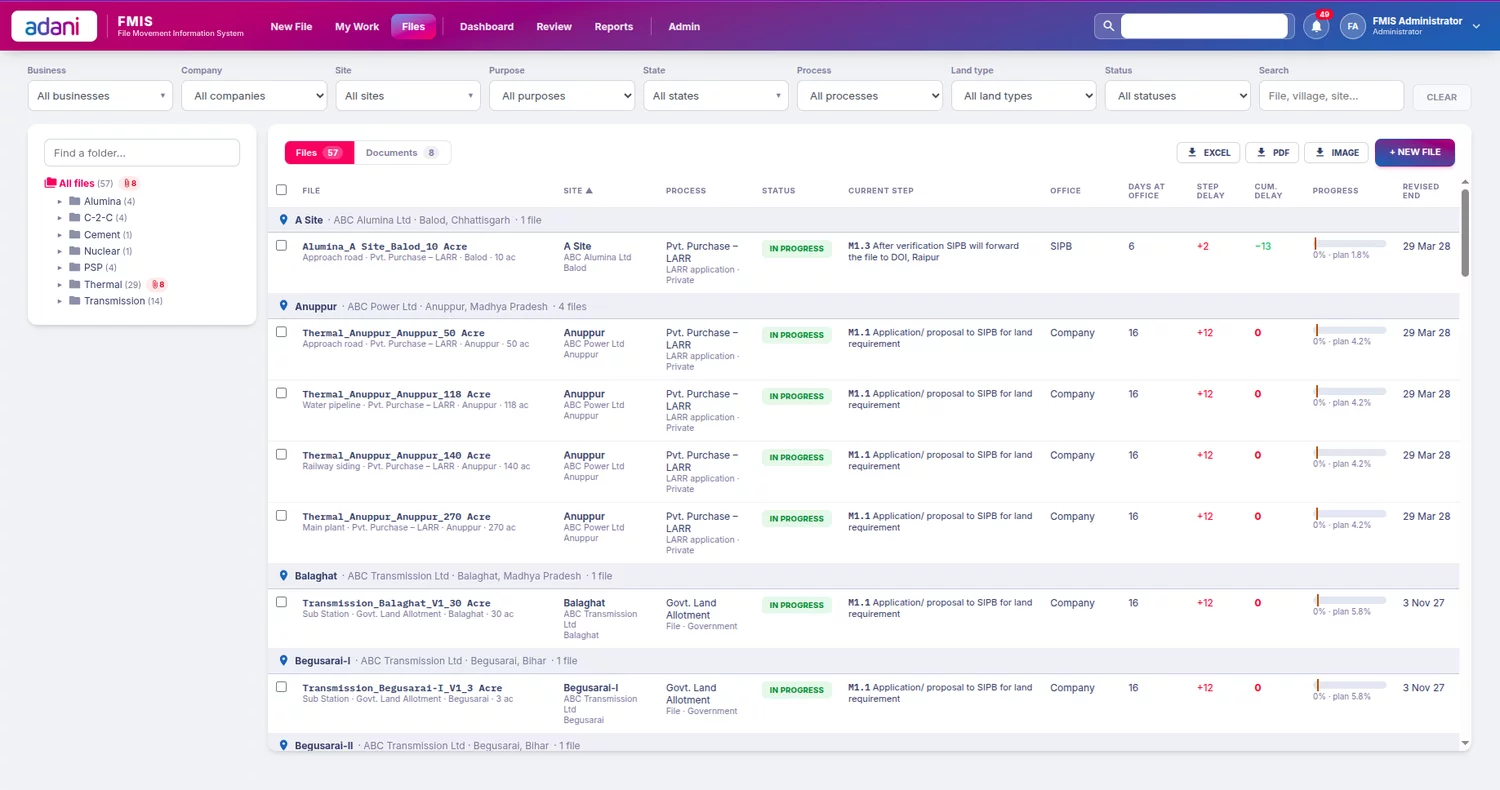
A folder tree by business, site, purpose, land type, and village sits beside the filters and the file list. Tick several files to complete one step for all of them, merge or split them, or add a document.
One row per sub-milestone, with estimated days, planned, revised, and actual dates, step and cumulative delay, and office. A track across the top shows the file's progress through its milestones.
Planned and revised dates for every milestone and sub-milestone on one timeline, with a marker for today and the days ahead of or behind plan beside each bar.
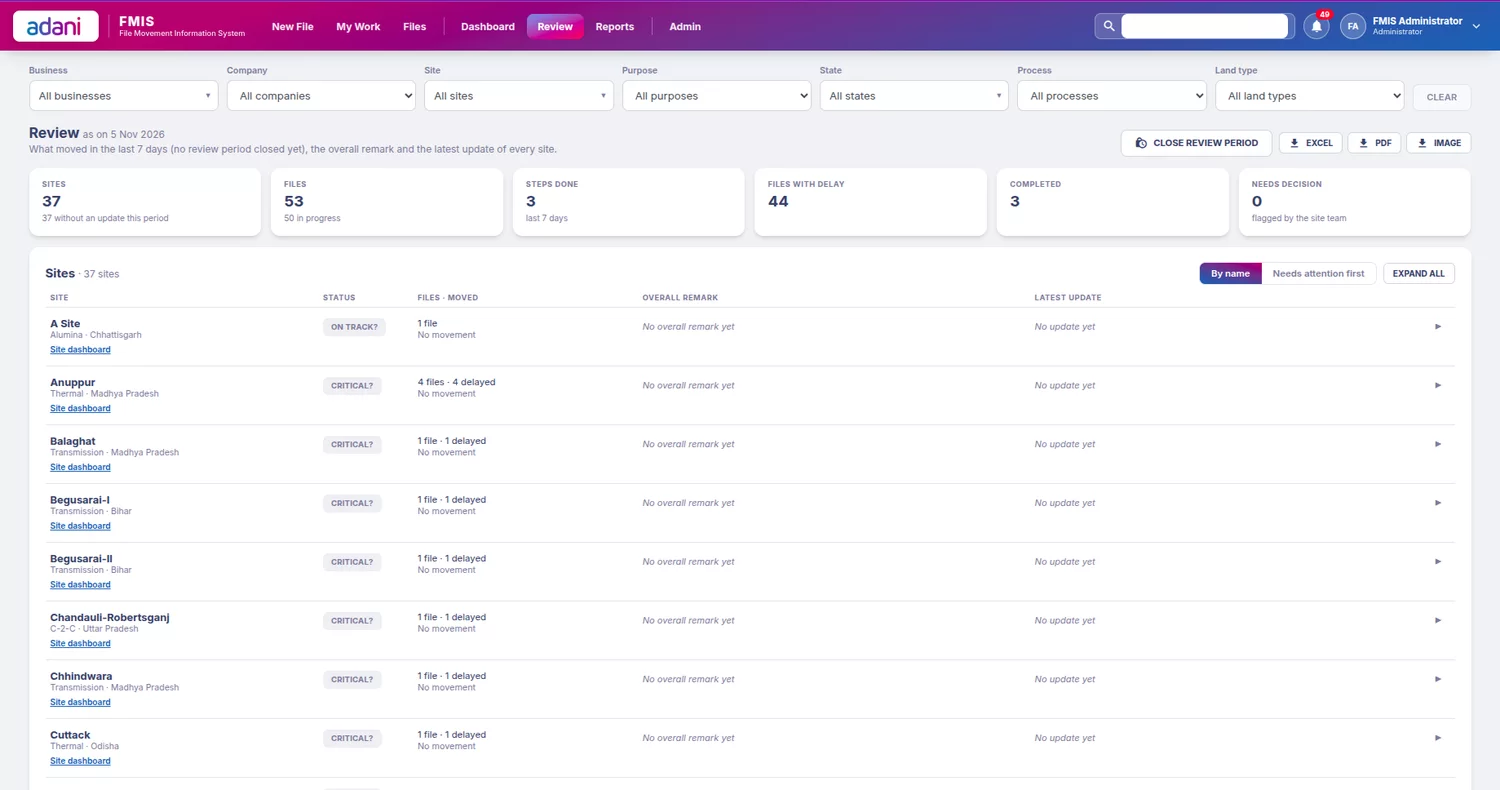
What moved in the last seven days, with the overall remark and latest update of every site. Sites can be sorted by name or with those needing attention first.
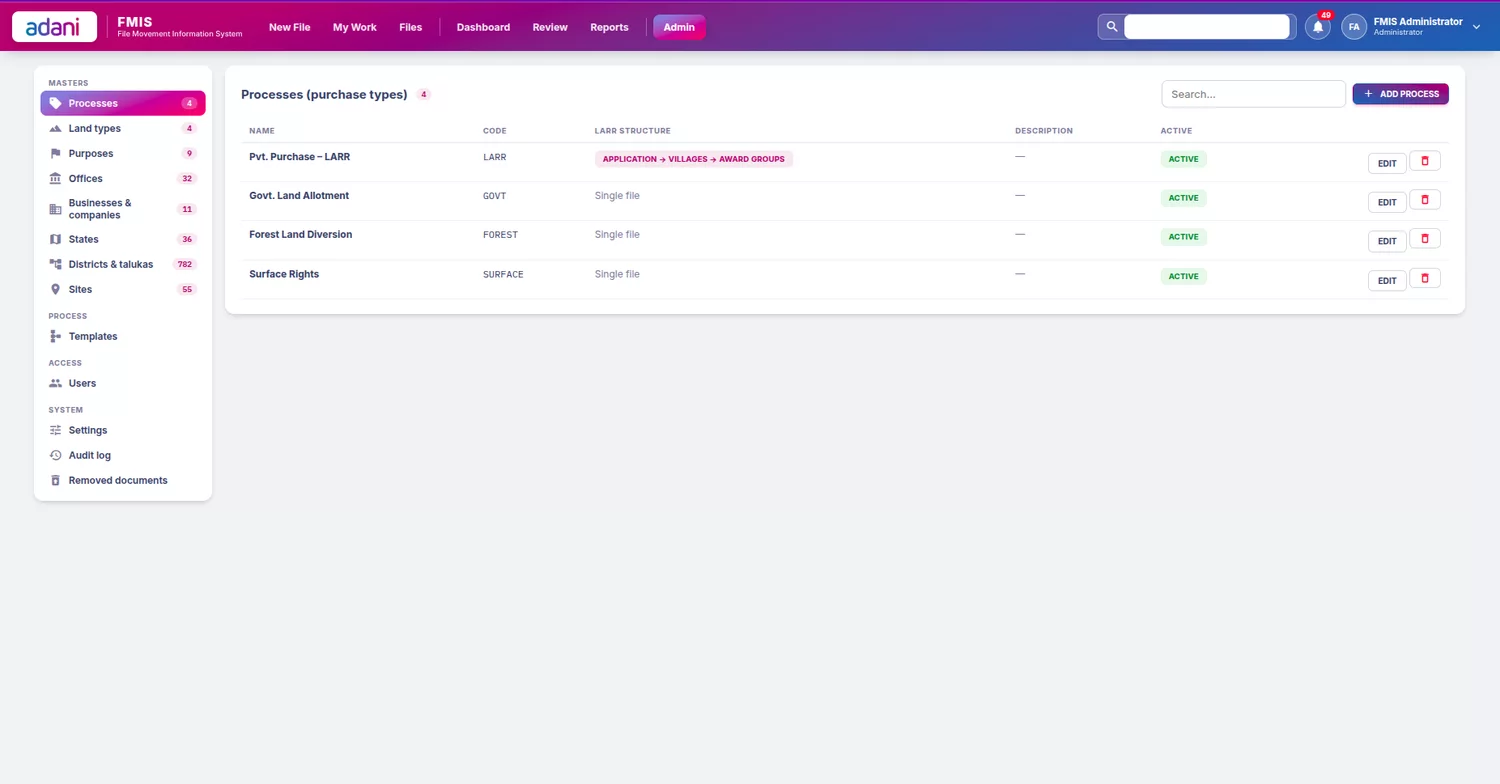
Masters for processes, land types, purposes, offices, businesses and companies, states, districts and talukas, and sites, along with templates, users, settings, and the audit log.
Who Uses FMIS
Each role sees only the tabs it can use. An L&E Business Head or Viewer sees what the Admin assigns by business, state, or site.
Creates files, plans them, records progress, and requests changes on assigned sites. Site SPOCs and external aggregators work with the same rights.
Does everything a Site User does and approves the requests of Site Users.
Monitors the businesses, states, and sites assigned, works on templates, and approves requests from Site Heads and the Admin. This role does not create files.
Sees every detail of assigned sites, but cannot edit or approve.
Manages masters, templates, users and their scope, settings, the audit log, and the alert job. An Admin can also create files, record progress, raise requests, and approve any request.
Key Capabilities
Documents by folder
Documents are organised from folder down to file and milestone, with missing mandatory documents flagged. One uploaded on a folder can apply to every file in it, now and later, or only to the files ticked.
Boundaries on a map
KML, KMZ, and shapefile boundaries of a site or village file appear on a satellite or street map, showing the outline, the centre, and the area drawn against the file's area.
Notifications and alerts
An hourly job sends each alert once and sends none for files on hold.
Excel, PDF, and image exports
Exports are available across the dashboard, site pages, files, reports, Gantt, and history.
Change history
Every change to a revised or actual date is logged from old to new with its cause. The movement register shows the milestones and steps of each office stay.
Scoped access
Site teams work on their own sites, and L&E Business Heads and Viewers see only what is assigned to them. Admins have an audit log.
Measured Performance
Measured on 1 October 2026 with 601 files against the remote database, taking the median of three runs.
Under 3 seconds
Every measured path stayed under the 3 s target.
Dashboard and files
The dashboard overview loaded in 1,197 ms and the files list in 438 ms.
File sheet and My Work
A file sheet opened in 405 ms and My Work in 247 ms.
Concurrent writes
80 files were created four at a time, with 0 failures.
Conclusion
FMIS gives land teams one working record of each file: the approved plan, where the file is expected now, and which office holds it. Site teams record the work as it happens, and business heads can see delays across sites, states, and businesses.